
Frequently Asked Questions
Everything you need to know about the PSB Quick Look HD plugin.
Last updated: May 6th, 2026
PSB Quick Look HD Plugin is available for purchase on the official App Store. Click the button below to be redirected to the store page.

- Once the app is downloaded from the App Store, go to your Applications folder.
- Locate the PSB Quick Look HD application.
- Double-click to open it for the first time (this registers the extension with macOS).
- Quit the application.
- Ensure the extension is enabled in your system settings: Apple Menu > System Settings > General > Login Items & Extensions > Extensions (at the bottom) > Quick Look > Info > PSB Quick Look
- Restart your computer to clear the system cache.
You can now enjoy full thumbnails and Quick Look previews for all your .psb files!
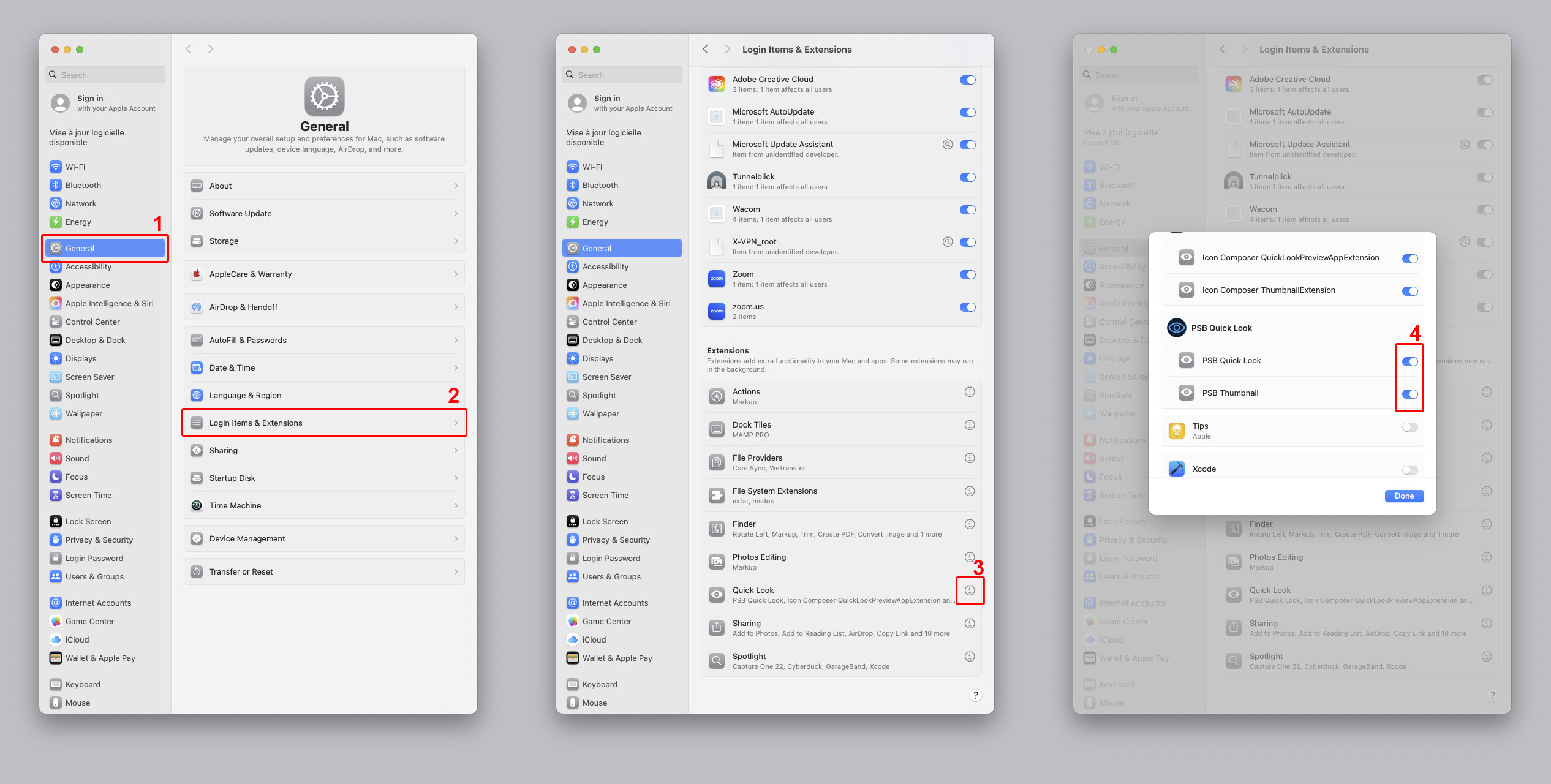
First, please ensure you are running a compatible OS version (macOS 15.2 or later).
Make sure the application has been correctly installed and opened at least once by double-clicking its
icon in the Applications folder.
Additionally, the Quick Look and Thumbnail extensions must be manually enabled in macOS settings. Go to:
System Settings > General > Login Items & Extensions. Scroll down to find Extensions, click on Quick Look, then click the "i" (Info) button and check PSB Quick Look.
A computer restart is required to force macOS to refresh the icon and thumbnail cache.
If you purchased PSB Quick Look HD after buying the BETA version, you must delete the BETA version from your Applications folder. You should also check your System Settings to ensure that the data from the first version is no longer displayed or has been disabled.
After doing this, please restart your computer.
The application is optimized for macOS 15.2 and later versions.
No. It uses an ultra-lightweight binary parsing method. Thumbnails are generated in milliseconds without impacting system performance.
Absolutely not. All processing is strictly local on your Mac. The application is "Sandboxed" by Apple, meaning it is technically blocked from accessing the Internet.
To ensure an instant and smooth display within macOS, our graphics engine extracts the raw image data from the file and automatically converts it to your screen's standard color space (sRGB / DeviceRGB).
RGB / sRGB files: Displayed with excellent visual fidelity.
CMYK files or wide-gamut profiles (ProPhoto RGB): The color data is adapted to fit your Mac's display. As a result, slight color variations may appear compared to the original authoring software.
PSB Quick Look HD is optimized to help you instantly browse and identify your heavy working files, but it is not intended to replace professional color checking ("Soft-Proofing") inside Photoshop.
No. Due to its secure sandbox architecture, the app only accesses the specific files you are currently viewing or previewing in the Finder.
The BETA version has successfully completed its testing phase and is no longer available. It has been fully replaced by our final release, PSB Quick Look HD, which features significantly improved performance and high-definition rendering.
No, if you purchased the initial BETA version, you will be able to download PSB Quick Look HD for free by sending me the Apple confirmation email from your original BETA purchase at psb.quick.look.plugin@gmail.com.
I will then send you a code to download the new version for free, as a thank you for being one of the first to test the BETA version.
PSB Quick Look BETA (1.0.1)
✓ Basic preview using native embedded PSB thumbnails (low resolution).
✓ Utilized standard macOS Quick Look APIs.
✓ Limitations on massive PSB files (> 4 GB).
PSB Quick Look HD (2.0.0 - 3.0.0)
✓ HD Quick Look preview, including support for files over 4 GB.
✓ Native support and conversion for complex color profiles (CMYK or Grayscale).
PSB Quick Look HD (3.1.0 - 3.2.1)
✓ HD preview for Finder thumbnails, with automatic resolution scaling when adjusting the slider.
✓ Removal of white borders around thumbnails.
✓ Expanded Quick Look display window for optimal visibility.